
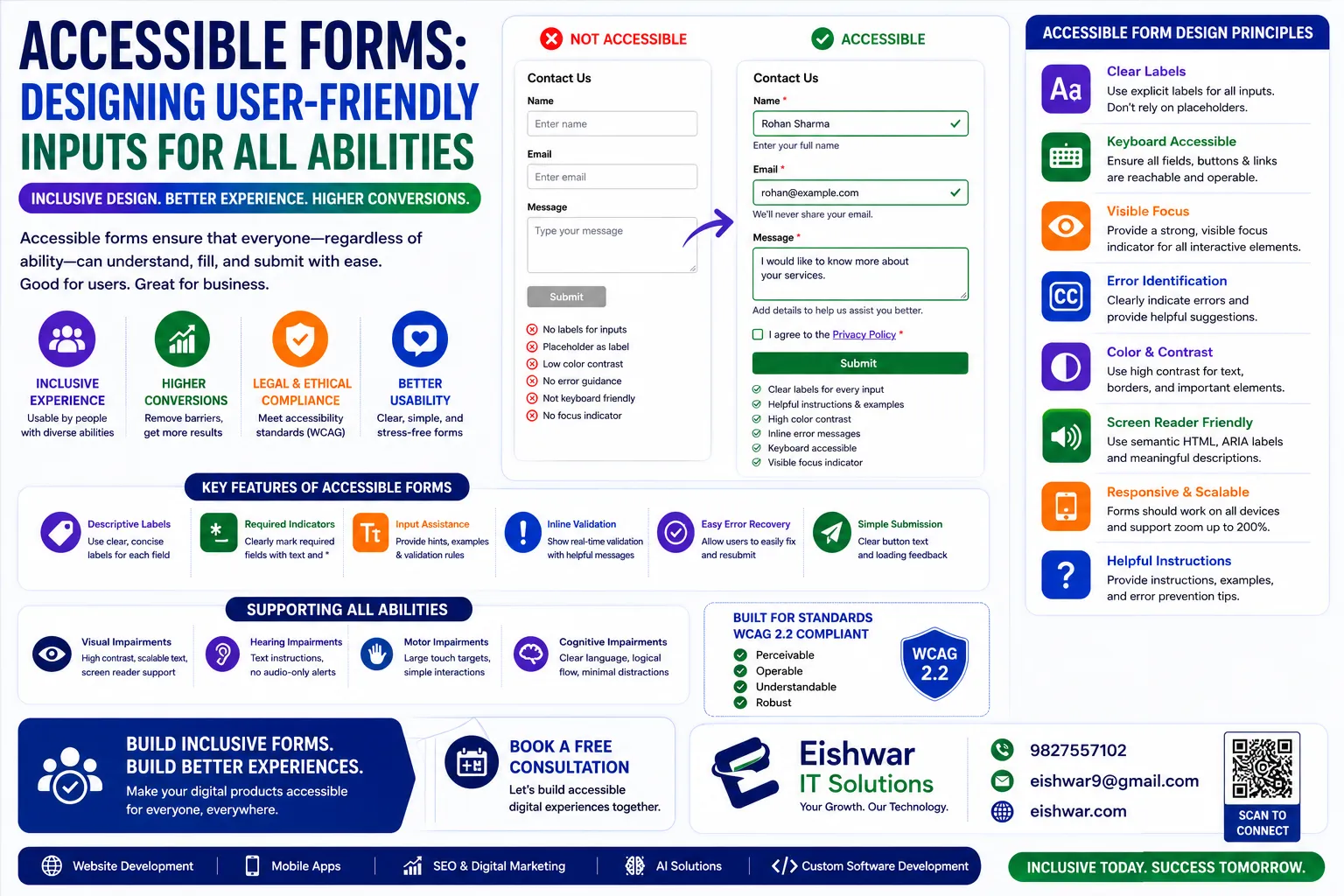
Accessible Forms: Designing User-Friendly Inputs for All Abilities
Published on: 17 Jun 2026
Accessible Forms: Designing User-Friendly Inputs for All Abilities
\nIntroduction
Forms are the gateways of digital interaction—from signing up for a newsletter to completing a purchase. Yet, poorly designed forms can exclude millions of users with disabilities. In India, where over 2.68 crore people live with some form of disability (Census 2011), accessible forms aren't just a legal requirement; they're a business imperative. At EishwarITSolution, we believe that inclusive design drives engagement and loyalty. This guide will walk you through creating forms that are usable by everyone, including people with visual, motor, cognitive, and hearing impairments. Consider a typical scenario: a user with low vision tries to fill out a registration form but cannot see the placeholder text or distinguish red error indicators. Or a user with motor impairments relies on keyboard navigation but gets stuck because the tab order is illogical. These are not edge cases—they represent real users who are often overlooked. By prioritizing accessibility, you not only comply with standards like WCAG 2.1 but also enhance the overall user experience, reduce bounce rates, and expand your audience. In this expanded guide, we'll dive deeper into each aspect, providing actionable examples and insights that you can implement immediately.
Learn more about our Website services
Main Section 1: Understanding Accessible Forms
An accessible form is one that can be perceived, operated, and understood by all users, regardless of their abilities. This means clear labels, logical tab order, error messages that make sense, and compatibility with assistive technologies like screen readers. For example, a user with low vision should be able to navigate a form using a keyboard alone, while someone with dyslexia should find the text easy to read. Accessible forms also benefit users on mobile devices or with slow internet connections. Let's break this down further: Perceivability means that every element—labels, instructions, errors—must be available to the senses. For a blind user, this translates to screen reader-friendly markup; for a deaf user, it means captions on any video instructions. Operability ensures that all users can interact with the form, whether via mouse, keyboard, voice, or switch devices. Understandability requires that the form's purpose and instructions are clear, with predictable behavior. And robustness means the form works across current and future technologies, including various browsers and assistive tools. A practical example: a sign-up form with a CAPTCHA that only offers visual challenges is not perceivable or operable for blind users. Instead, use audio CAPTCHAs or honeypot techniques. Another example: a form that uses JavaScript to auto-advance to the next field may confuse screen reader users who expect to tab manually. Always provide a manual option.
Main Section 2: Key Design Principles for Accessible Forms
Start with semantic HTML. Use <label> elements properly associated with <input> fields via the for attribute. Ensure every input has a visible label—placeholder text alone is not enough because it disappears when typing. Group related fields using <fieldset> and <legend>. Provide clear instructions and error messages that are announced by screen readers. Use sufficient color contrast (minimum 4.5:1 ratio) and avoid relying solely on color to convey information. Test your forms with keyboard navigation: can users tab through all fields in a logical order? Are there visible focus indicators? For instance, a login form should have a label for the username field, not just a placeholder saying 'Username'. When a user tabs into the field, a screen reader should announce 'Username, edit text'. If you use a placeholder alone, some screen readers may skip it or read it inconsistently. Grouping related fields, like address fields (street, city, state, zip), within a <fieldset> with a <legend> like 'Mailing Address' helps users understand the context. Error messages should be specific and actionable. Instead of 'Invalid input', say 'Please enter a valid email address in the format name@example.com'. Also, ensure that error messages are programmatically associated with the input field using aria-describedby. For color contrast, use tools like WebAIM's contrast checker. A common mistake is using light gray text on a white background, which fails contrast requirements. Finally, focus indicators should be prominent, such as a 2-pixel solid blue outline, not just a subtle change that keyboard users might miss.
👉 Don't wait for the perfect moment; turn your vision into reality today.
Free ConsultationMain Section 3: Practical Implementation Tips
Consider real-world scenarios: a user with motor impairments might use voice commands or a switch device. Ensure your forms work with these tools by using standard HTML elements and avoiding complex custom controls. For CAPTCHA, offer audio alternatives or use honeypot techniques. Provide auto-fill suggestions for fields like name and address. Use ARIA attributes sparingly and only when native HTML doesn't suffice. For example, use aria-required to indicate mandatory fields. Always test with real users who have disabilities to uncover issues automated tools might miss. Let's expand on these tips with concrete examples. For voice command users, ensure that form fields have unique and descriptive labels so that voice recognition software can target them accurately. For instance, instead of two fields both labeled 'Name', use 'First Name' and 'Last Name'. For switch devices, the tab order must follow a logical sequence—typically top to bottom, left to right. Avoid using tabindex values greater than 0, which can create a confusing order. For auto-fill, use the autocomplete attribute with appropriate values like 'given-name', 'family-name', 'email', etc. This helps users with cognitive disabilities by reducing memory load. When using ARIA, remember the first rule: don't use ARIA if you can use a native HTML element that already has the semantics built-in. For example, use <button> instead of a <div> with role='button'. For aria-required, it's best to also use the HTML5 required attribute, but note that required alone may not be announced by all screen readers, so aria-required='true' provides redundancy. Testing with real users is invaluable. For instance, a user with a screen reader might reveal that your error messages are not being read because they are not dynamically inserted into the DOM. Or a user with low vision might point out that your focus indicator is too subtle against a dark background. Always iterate based on feedback.
👉 Free Website Audit
Get Free AuditExpert Tips
- Use clear language: Avoid jargon and keep instructions simple. For example, say 'Enter your email address' instead of 'Provide your email ID'. This benefits users with cognitive disabilities, non-native speakers, and even users in a hurry.
- Provide error suggestions: If a user enters an invalid email, show something like 'Please use the format name@example.com'. For a phone number, indicate the expected format, e.g., '10 digits, no dashes'. This reduces frustration and helps users correct errors quickly.
- Allow flexible input formats: Accept phone numbers with or without dashes, and use masking to guide users. For example, use an input mask that automatically adds dashes as the user types, but also accept raw digits. This accommodates users who may copy-paste or type in different ways.
- Enable undo actions: Let users correct mistakes easily without starting over. For multi-step forms, provide a 'Back' button that preserves entered data. For single-page forms, allow users to edit any field without losing other inputs. This is especially helpful for users with cognitive or motor impairments.
- Test with real assistive technology: Use screen readers like NVDA or JAWS, and speech recognition tools like Dragon NaturallySpeaking. Automated tools can catch about 30% of issues, but manual testing reveals the rest. For example, a screen reader might announce a dropdown as 'collapsed' when it's actually expanded, which only a human tester would notice.
Common Mistakes
- Relying only on color: Using red text alone to indicate errors excludes color-blind users. Always combine color with icons (like an exclamation mark) or text labels. For example, show a red border and a text message saying 'This field is required'.
- Missing focus indicators: Keyboard users need to see where they are on the page. A common mistake is removing the default outline without providing an alternative. Always ensure focus indicators have a contrast ratio of at least 3:1 against the background.
- Using placeholder as labels: Placeholders disappear and can't be read by all screen readers. They also cause issues for users with cognitive disabilities who may forget what the field is for once they start typing. Always use a persistent label above or beside the input.
- Poor error messages: Vague messages like 'Invalid input' don't help users fix the problem. Be specific: 'Please enter a valid date in DD/MM/YYYY format'. Also, place error messages near the relevant field, not at the top of the form.
- Ignoring mobile accessibility: Small touch targets and tiny fonts make forms unusable for many. Ensure touch targets are at least 44x44 pixels, font sizes are at least 16px, and there is enough spacing between fields to prevent accidental taps.
Future Trends
Voice-activated forms are becoming more common, especially with smart assistants like Alexa and Google Assistant. Biometric authentication (fingerprint, face ID) can reduce form friction. AI-powered error prediction and auto-correction will make forms smarter. Also, expect stricter accessibility regulations in India, similar to the European Accessibility Act. Staying ahead means designing inclusively from the start. For example, voice-activated forms can allow users to fill out fields by speaking, which is a boon for users with motor impairments or those who are visually impaired. However, ensure that voice input is an option, not the only method, as some users may have speech disabilities. Biometric authentication can streamline login forms, but it must have fallback options (like a password) for users who cannot use biometrics due to physical limitations or device incompatibility. AI can predict common errors, such as a mistyped email, and offer corrections before the user submits. This reduces frustration and improves success rates. In India, the Rights of Persons with Disabilities Act (2016) already mandates accessibility, but enforcement is increasing. By adopting inclusive design now, you future-proof your forms against upcoming regulations and demonstrate social responsibility.
👉 Free Homepage Demo
Book DemoFAQs
- What is an accessible form? An accessible form is designed to be usable by people with various disabilities, including those using screen readers, keyboard-only navigation, or voice commands. It ensures that every user can perceive, operate, and understand the form without barriers.
- Why are labels important in forms? Labels provide context for each input field. They are read aloud by screen readers and help all users understand what information is required. Without labels, users may guess incorrectly, leading to errors and frustration. Labels also improve SEO by providing semantic structure.
- How can I test my form for accessibility? Use automated tools like WAVE or axe to catch common issues, but also test manually with a keyboard and screen reader. Involve users with disabilities for real feedback. For example, ask a blind user to complete a task and observe where they struggle. This reveals issues that automated tools miss, such as confusing tab order or unclear instructions.
- What is the role of ARIA in forms? ARIA (Accessible Rich Internet Applications) can enhance accessibility when native HTML is insufficient. Use it sparingly and correctly to avoid confusion. For example, use
aria-describedbyto link an error message to an input, oraria-liveto announce dynamic content. Overusing ARIA can create more problems than it solves, so always prefer native HTML first. - Are accessible forms better for SEO? Yes, semantic HTML and clear labels improve search engine understanding and can boost rankings. Search engines rely on well-structured content to index pages correctly. Accessible forms also reduce bounce rates and increase time on site, which are positive signals for SEO.
- Do I need to design separate forms for disabled users? No, inclusive design means one form works for everyone. It's more efficient and cost-effective. Designing separate forms can lead to inconsistencies and higher maintenance costs. Instead, focus on universal design principles that benefit all users, including those with temporary impairments (e.g., a broken arm) or situational limitations (e.g., bright sunlight).
Conclusion
Designing accessible forms is not just about compliance—it's about creating a welcoming digital space for everyone. By following the principles and tips in this guide, you'll improve user experience, reduce abandonment rates, and build trust with your audience. Remember, inclusive design benefits all users, including those on mobile devices or with temporary impairments. Start small, test often, and iterate based on real feedback. Every step you take toward accessibility is a step toward a more equitable web.
CTA
Ready to make your forms accessible? Contact EishwarITSolution for a free accessibility audit and consultation. Let's build a web that works for everyone.