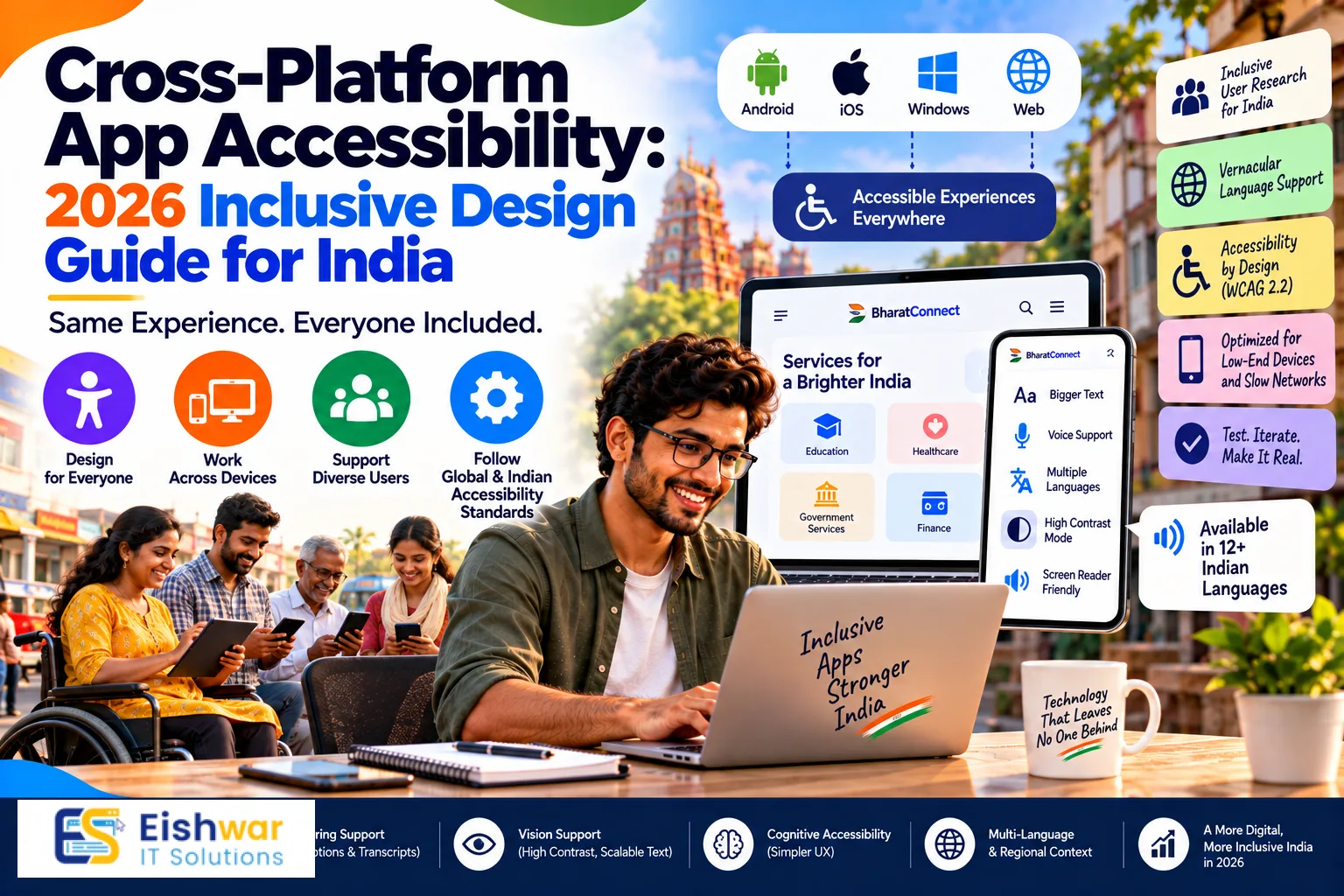
Cross-Platform App Accessibility: 2026 Inclusive Design Guide for Indi
Published on: 14 Aug 2026
Cross-Platform App Accessibility: 2026 Inclusive Design Guide for Indian Businesses
Introduction
In India, over 1.4 billion people rely on mobile apps for everything from banking to shopping. Yet, for millions with disabilities—visual, auditory, motor, or cognitive—most apps remain a frustrating maze. Accessibility isn't just a moral duty; it's a massive untapped business opportunity. By 2026, as digital inclusion becomes a legal and social benchmark, cross-platform apps that embrace accessibility will lead the market.
Learn more about our Website services
This guide will show you why accessibility matters, how to implement it in cross-platform development, and how it can boost your brand's reach and revenue in India.
Why Cross-Platform App Accessibility Matters in India (2026)
India is home to an estimated 80 million people with disabilities, yet only a fraction use the internet comfortably. With the government's push for digital inclusion and the rise of 'Accessible India' campaigns, accessibility is no longer optional. Moreover, the aging population—over 150 million seniors—also benefits from accessible design. By making your app inclusive, you tap into a loyal, underserved customer base.
From a legal standpoint, the Rights of Persons with Disabilities Act, 2016, mandates equal access to digital services. In 2026, courts may enforce these rights more strictly, making accessibility a compliance issue. Additionally, the Web Content Accessibility Guidelines (WCAG) 2.2 are becoming the global standard, and app stores are increasingly highlighting accessible apps.
Consider the financial implications: a study by the World Bank suggests that excluding people with disabilities from digital services can cost economies up to 7% of GDP. In India, that translates to billions of rupees in lost potential. By prioritizing accessibility, you're not just doing good—you're making a smart business decision. For instance, a banking app that offers voice-guided navigation can attract visually impaired users who currently rely on others for financial transactions. Similarly, an e-commerce app with simplified checkout processes can retain elderly users who might otherwise abandon their carts due to complex forms.
Moreover, accessibility features often benefit everyone. Captions on videos help users in noisy environments, high-contrast modes assist users in bright sunlight, and larger touch targets reduce accidental taps for all users. This universal design philosophy, often called the 'curb-cut effect,' means that your investment in accessibility yields dividends across your entire user base.
Key Principles of Inclusive Design for Cross-Platform Apps
Inclusive design isn't just about adding alt text. It's a philosophy that ensures every user can perceive, operate, and understand your app. Here are the core principles, aligned with WCAG 2.2:
- Perceivable: Provide text alternatives, captions, and adaptable layouts. This means ensuring that information isn't conveyed solely through color, sound, or shape. For example, if a form field indicates an error with a red border, also include an error icon and a text message.
- Operable: Ensure all functions are usable via keyboard, touch, and voice. Users with motor impairments may rely on external keyboards, switch devices, or voice commands. Your app should support these input methods seamlessly. For instance, in Flutter, you can use the `Focus` and `Shortcuts` widgets to handle keyboard navigation, while React Native offers `onKeyPress` and `accessible` props.
- Understandable: Use clear language, predictable navigation, and error prevention. Avoid jargon and complex sentence structures. Provide instructions that are easy to follow, and ensure that navigation patterns are consistent across screens. For example, if a 'Next' button is at the bottom right on one screen, it should be in the same position on all screens.
- Robust: Maximize compatibility with assistive technologies. This means using standard HTML elements (if web-based) or native components (in mobile) that expose the correct accessibility information to screen readers. Avoid custom widgets that don't provide proper semantics.
For cross-platform frameworks like Flutter and React Native, these principles guide how you structure UI components and handle gestures. For instance, Flutter's built-in accessibility widgets (like `Semantics` and `MergeSemantics`) and React Native's accessibility props (like `accessibilityLabel`, `accessibilityRole`, and `accessibilityState`) are your starting points. Understanding these tools is crucial—they allow you to provide a consistent experience across Android and iOS, despite their differing underlying accessibility APIs.
👉 Don't wait for the perfect moment; turn your vision into reality today.
Free ConsultationPractical Implementation: Making Your App Accessible
Here's how to implement accessibility in your cross-platform app, with actionable steps and code snippets:
1. Color and Contrast
Ensure text-to-background contrast ratio is at least 4.5:1 for normal text and 3:1 for large text (18pt or 14pt bold). Avoid color-only indicators (e.g., red for error). Use tools like Stark or Contrast Checker to test. In Flutter, you can define a custom `ThemeData` with accessible color schemes, while in React Native, you can use a library like `react-native-color-matrix-image-filters` to adjust contrast dynamically. For example, if your app uses a light gray text on a white background, it might fail contrast checks. A simple fix is to darken the text to #333333, which provides a contrast ratio of 12.6:1.
2. Text and Typography
Allow users to resize text up to 200% without breaking layout. Use scalable units (sp, dp) and avoid fixed pixel sizes. Support dynamic type from the OS. In Flutter, use `textScaleFactor` (or `MediaQuery.textScaler` in newer versions) to respect system settings. In React Native, use `allowFontScaling` (which is true by default) and ensure your styles use `fontSize` with relative units. Test your layout with large font sizes to ensure text doesn't get cut off or overlap. For instance, if you have a button with text, ensure it can accommodate text that is 200% larger without truncation.
3. Navigation and Focus
Ensure logical tab order and visible focus indicators. For React Native, use `accessible`, `accessibilityLabel`, and `onAccessibilityTap`. In Flutter, use `Semantics` widgets to group or label elements. For example, when a user tabs through a form, the focus should move from the name field to the email field, then to the submit button, in that order. You can achieve this by setting `focusNode` and `onFocusChange` in Flutter, or `nextFocus` and `previousFocus` in React Native. Also, ensure that the focus indicator is clearly visible—don't rely on the default outline, which might be too subtle. Customize it with a contrasting border or a slight background change.
4. Touch Targets
Make tappable areas at least 48x48 dp. Provide ample spacing to prevent accidental taps. This is especially important for users with motor impairments. In Flutter, you can set `constraints: BoxConstraints(minWidth: 48, minHeight: 48)` on a `GestureDetector` or `InkWell`. In React Native, you can set `minWidth` and `minHeight` in the style. For example, if you have a list of small icon buttons, consider increasing their size or adding padding around them. This not only helps users with disabilities but also improves the overall user experience, as it reduces mis-taps.
👉 Free Website Audit
Get Free Audit5. Screen Reader Support
Test with TalkBack (Android) and VoiceOver (iOS). Provide meaningful content descriptions for images, icons, and buttons. Avoid using text in images. For example, if you have an icon that represents a shopping cart, set its `accessibilityLabel` to 'Shopping cart' rather than leaving it unlabeled. In Flutter, use `Semantics(label: 'Shopping cart', child: Icon(Icons.shopping_cart))`. In React Native, use `accessibilityLabel` on the `TouchableOpacity` or `Image`. Also, ensure that decorative images are hidden from screen readers by setting `Semantics(excludeSemantics: true)` or `importantForAccessibility: 'no'`.
6. Forms and Errors
Label every form field clearly. Announce errors in real-time and provide suggestions for correction. Ensure error messages are read aloud by screen readers. For example, if a user enters an invalid email, display an error message like 'Please enter a valid email address' and set `accessibilityLiveRegion` (Android) or `accessibilityLiveRegion` (iOS) to 'polite' so that the screen reader announces it immediately. In Flutter, you can use `Semantics(liveRegion: true, child: Text(errorMessage))`. In React Native, use `accessibilityLiveRegion` on the `Text` component. Also, ensure that the error message is associated with the input field using `aria-describedby` (web) or `accessibilityHint` (mobile).
7. Media and Animation
Provide captions for videos. Allow users to pause or reduce motion. Respect the OS-level 'reduce motion' setting. For example, if your app has a carousel that auto-scrolls, provide a pause button and respect the `MediaQuery.disableAnimations` (Flutter) or `AccessibilityInfo.isReduceMotionEnabled` (React Native) to disable animations when the user has requested reduced motion. Also, ensure that any animations are not distracting or seizure-inducing. Use the `AnimatedContainer` with a duration that can be set to zero when reduce motion is enabled.
Expert Tips
- Involve users with disabilities in testing from day one. Their feedback is invaluable. For example, you can partner with local disability organizations or use platforms like UserTesting to recruit participants with specific disabilities. Conduct usability tests and incorporate their suggestions into your design iterations.
- Use automated testing tools like Lighthouse, axe, and XCUITest for accessibility, but combine with manual testing. Automated tools can catch common issues like missing labels or low contrast, but they can't evaluate the user experience. For instance, a screen reader user might find that a button's label is confusing, even if it's technically present. Manual testing with real assistive technology is essential.
- Create an accessibility-first design system that includes accessible color palettes, typography, and component patterns. This ensures that accessibility is baked into every new feature. For example, define a set of color tokens that meet contrast ratios, and use them consistently across the app. Similarly, create reusable components like `AccessibleButton` that include proper touch targets and accessibility labels.
- Train your team on WCAG and native accessibility APIs. Consider hiring an accessibility consultant. Regular workshops and documentation can help your team stay updated. For instance, you can have a monthly 'accessibility review' session where team members audit new features.
- Keep an accessibility backlog and fix issues in every sprint, not just at the end. This prevents accessibility debt from accumulating. For example, if you discover a contrast issue during a sprint, add it to the backlog and prioritize it for the next sprint. This ensures that accessibility is continuously improved.
Common Mistakes to Avoid
- Relying solely on color to convey meaning. For example, if a form field turns red to indicate an error, also add an error icon and a text message. This ensures that color-blind users can still understand the error.
- Ignoring keyboard and voice navigation. Many users rely on external keyboards or voice commands to interact with apps. Ensure that all functionality is accessible via these methods. For example, test your app with a Bluetooth keyboard and with voice commands like 'tap' or 'scroll'.
- Using small, low-contrast text for aesthetic reasons. This is a common pitfall in modern design, where subtle text is used to create a minimalist look. However, it makes content unreadable for many users. Always prioritize readability over aesthetics.
- Not testing with real assistive technology. Emulators and automated tools can't replicate the experience of a real screen reader or switch device. Invest in physical devices and conduct regular testing.
- Treating accessibility as a one-time fix rather than an ongoing process. Accessibility is not a checkbox; it's a continuous commitment. As your app evolves, new accessibility issues will arise. Make accessibility a part of your development lifecycle.
Future Trends in App Accessibility (2026 and Beyond)
In 2026, we'll see AI-driven accessibility features like automatic alt-text generation and real-time sign language avatars. Voice interfaces will become primary for many users, and cross-platform frameworks will integrate deeper with OS-level accessibility. For example, Flutter's upcoming versions are expected to have better support for dynamic type and screen reader gestures. React Native is also improving its accessibility API with more granular control over focus and announcements.
👉 Free Homepage Demo
Book DemoAlso, expect stricter app store reviews for accessibility compliance, making it a ranking factor. Both Google Play and the App Store are already using automated scans to flag accessibility issues, and this trend will intensify. Apps that fail to meet basic accessibility standards may be delisted or demoted in search results.
Another trend is the rise of 'inclusive AI'—using machine learning to adapt the app's interface to individual user needs. For instance, an app could learn that a user prefers larger text and higher contrast, and automatically apply those settings across all screens. This personalization will make accessibility more seamless and user-centric.
FAQs
1. What is cross-platform app accessibility?
It's the practice of designing and developing mobile apps that work for people with disabilities, using frameworks like Flutter or React Native, ensuring equal access to all features. This includes making the app usable with screen readers, keyboard navigation, and other assistive technologies, while maintaining a consistent experience across Android and iOS.
2. Is accessibility legally required in India for mobile apps?
Under the Rights of Persons with Disabilities Act, 2016, private entities must provide equal access to digital services. While enforcement is evolving, it is legally expected. The government has also launched the 'Accessible India' campaign, which includes guidelines for websites and apps. In 2026, we anticipate more stringent enforcement, so it's wise to comply proactively.
3. How does accessibility benefit my business?
It expands your user base, improves SEO, enhances brand reputation, and reduces legal risks. Accessible apps also tend to have better usability for everyone. For example, high-contrast text helps users in bright sunlight, and captions help users in noisy environments. This can lead to higher user satisfaction, increased retention, and positive word-of-mouth.
4. What are the main challenges in making a cross-platform app accessible?
Challenges include dealing with platform differences, ensuring consistent behavior across Android and iOS, and testing with multiple assistive technologies. However, modern frameworks simplify many aspects. For instance, Flutter's `Semantics` widget and React Native's accessibility props allow you to define accessibility information once and have it translated to the native accessibility APIs. Still, you need to test on both platforms to ensure consistency.
5. How can I test my app's accessibility?
Use automated tools like axe, Lighthouse, and built-in Xcode/Android Studio accessibility inspectors. Also, conduct manual testing with screen readers like TalkBack and VoiceOver, and involve real users with disabilities. For example, you can use the Android Accessibility Scanner to identify issues like small touch targets or missing labels. Combine these with user testing to get qualitative feedback.
6. What are the specific accessibility features in Flutter and React Native?
Flutter provides widgets like `Semantics`, `MergeSemantics`, and `ExcludeSemantics` to control what screen readers announce. It also supports dynamic text scaling and focus management. React Native offers props like `accessible`, `accessibilityLabel`, `accessibilityRole`, `accessibilityState`, and `accessibilityActions`. Both frameworks allow you to customize the accessibility behavior to match your app's needs.
7. How can I make my app accessible for users with cognitive disabilities?
Use plain language, provide clear instructions, and avoid complex navigation. Offer features like 'reduce distractions' mode, which hides non-essential elements. Also, ensure that your app doesn't have time limits that could cause anxiety. For example, if you have a form, allow users to take their time and provide clear error messages that are easy to understand.
Conclusion
Accessibility is a journey, not a destination. By making your cross-platform app inclusive, you're not only complying with regulations but also unlocking the potential of millions of Indian users. Start small, iterate, and keep users at the center. The future of digital India is accessible—be a part of it.
Ready to Build an Accessible App?
At EishwarITSolution, we specialize in creating inclusive cross-platform apps that resonate with every Indian user. Our expert team integrates accessibility from the ground up, ensuring your app is user-friendly and compliant. Contact us today to start your accessible app project!
CTA
Ready to build an accessible app? Contact EishwarITSolution today for expert cross-platform development with accessibility at its core.